
Paperclip - Drag'n'drop images

Description:
This feature allows users to clip an image and use it as key image. This can be added to the report or as another another image series.
Use case:
By pressing this button  the user enables Drag'n'drop of an image loaded in a viewport within the viewer to an active template block in the Report.
This also allows users to create a new image series.
Depending on the Active Template block the image is dropped on, measurements and image information may be automatically added to the report.
This tool button is currently given to any user who has access to the viewer.
How to use it:
A. To create a new image series:
Among the stack of images, the user should select an image to add as a new series.
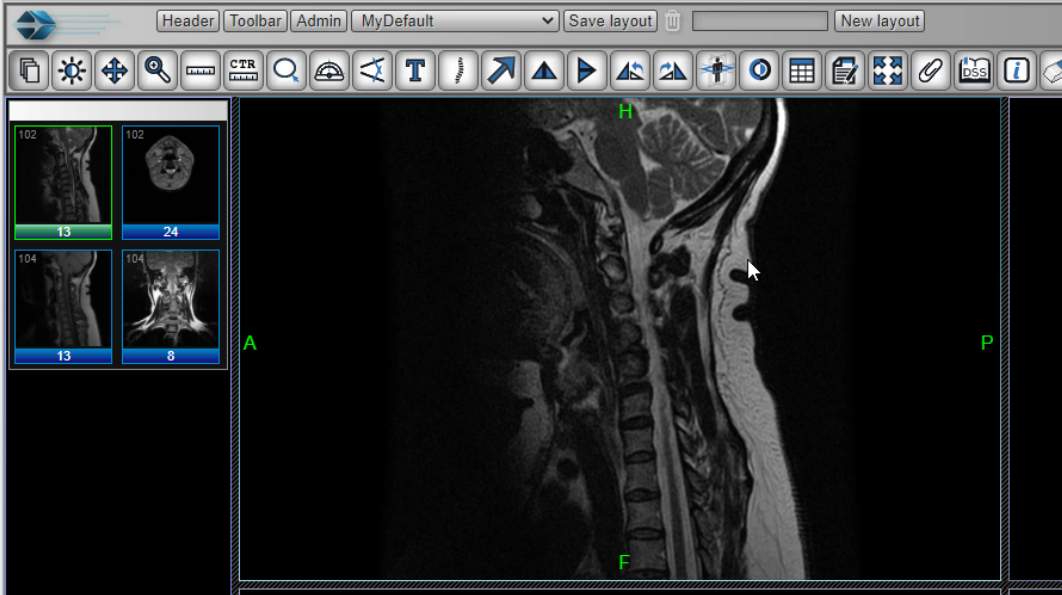
Once you have the image, click the  icon from the toolbar.
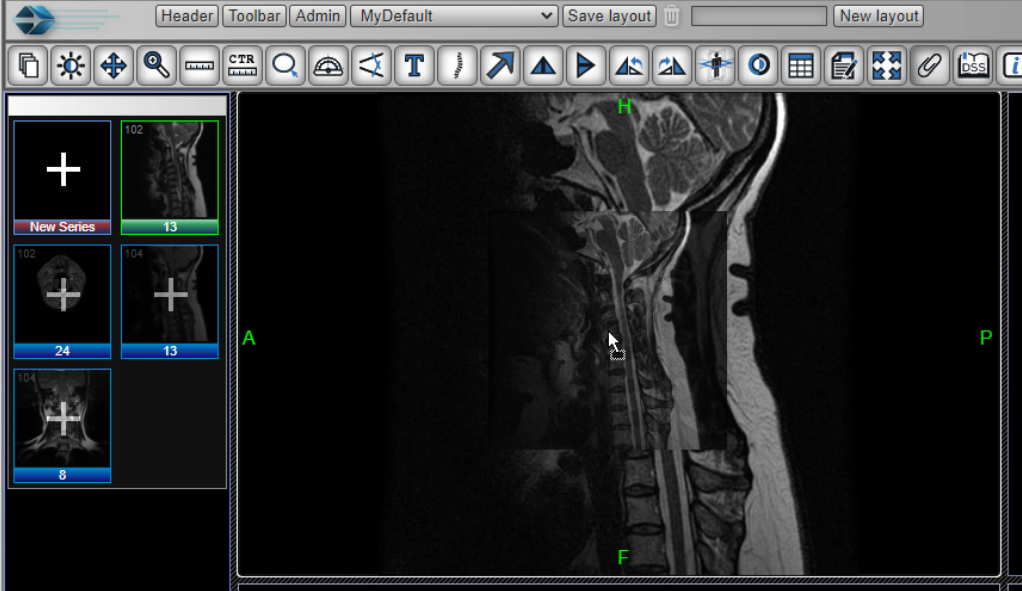
Left mouse click on the image and drag it to the thumbnail panel.
As you drag the image to the thumbnail panel, you'll notice a new series formed with plus sign. Drag and drop the image onto that series.
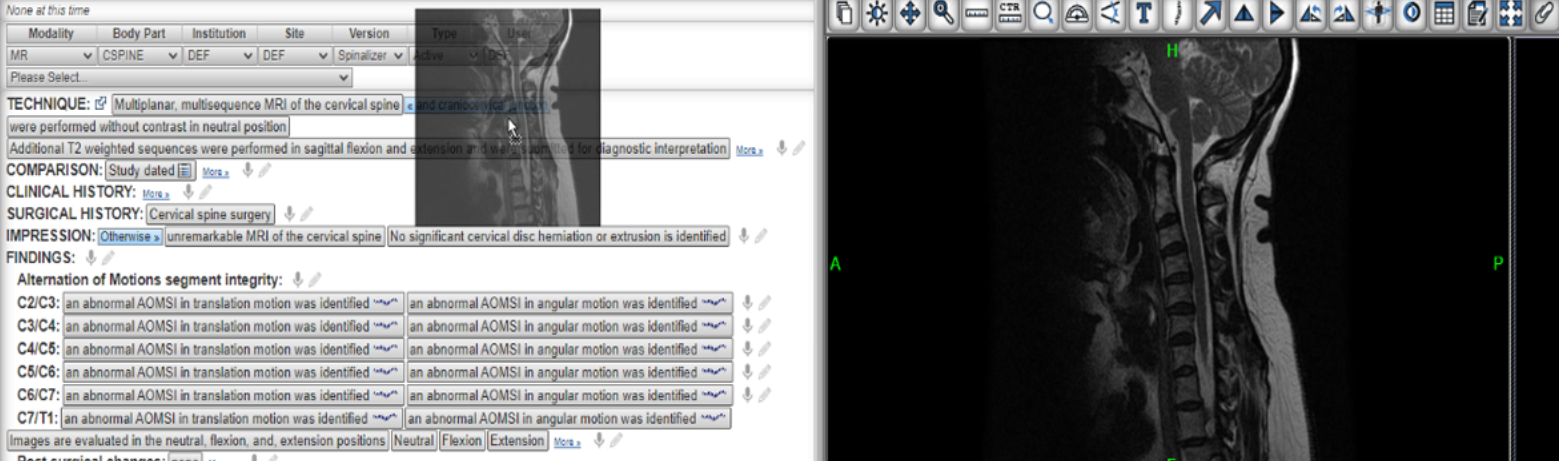
B. To Add Drag and drop to an active template reporting module
Open the study in the diagnostic image then drag it to the viewport.
Select image then press the paperclip icon [ ] to enable Drag and drop.
The drag the image to an active template bloack
Tool Tip:
For users who do not use an active template, they may still attach a key image to the report.
To add a key image - click the paperclip icon from the toolbar and then single left mouse click on the image.