
This feature allows for the manual creation of patient study/records on the worklist when there is no device/modality where one can send to LifeSys.
Normally, LifeSys pulls the patient demographics from the DICOM header of the study. This feature allows users to manually input the patient information and upload report paperwork, non-DICOM images, and DICOM files.
Required fields
The user needs to have the 'Add Study' feature within the user scope.
Instruction
The 'Add Study feature allows you to upload paperwork, non-DICOM images and DICOM files.
The following file format are supported when you are trying to add non-DICOM images and/or you want to add as a paperwork:
- jpeg
- png
- bmp
- tiff
To add a worklist entry:
- Look for the 'Add study' button on the worklist
- Click to open the Add study floating page
- Fill in the form. The following information are required:
- Status
- Modality
- Patient ID
- Patient Name
- Sex
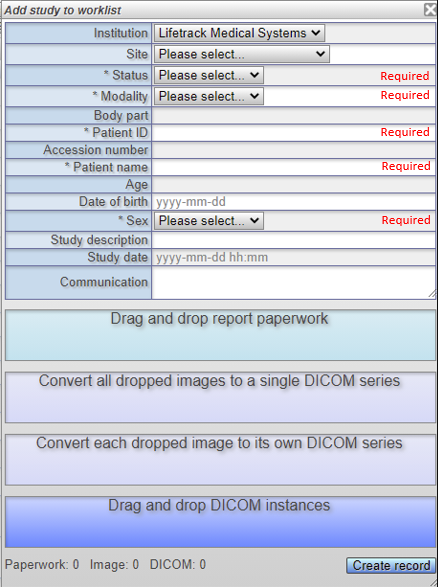
**If you want to attach a paperwork or images to the study records, please follow the relevant steps provided below.
Otherwise, when you click the Create the record without attachment, it will make an entry on the worklist and you may add additional paperwork or images via the Report page or the Workflow page.
To add a paperwork
- While you are still in the 'Add study panel', drag a file from your workstation folder to the 'Add study paperwork' drop spot

- You should see the number of files uploaded at the bottom part of the 'Add study' page

** If you are satisfied with the record created, you may click the Create record section. Otherwise, you may also upload images.
Uploaded paperwork will be visible in the Report paperwork field on the Report page and/or Workflow page. Check related links section below.
To add a non-DICOM image
Users can add images as a series stack or each image as individual series. The modality of the attached non-DICOM image is OT
Create series stack
- To create a stacked series, drag and drop a group file from your workstation folder to the Convert all dropped images to a single DICOM series drop spot.
- This will collect and convert the files in a single DICOM series.
To add additional files/groups:
- Each drop event triggers the system to create a new series.
- You can drag and drop another set of images to create a different series.
Example:
If you drop 4 sets of files, it shall create 4 stacked series

Create a single instance series per image
- Drag and drop the file from your workstation folder to the Convert each dropped image to its own DICOM series drop spot.
- When dropped in the target dropspot, each files will be in its own series
- Users may drop multiple files at once

To add a DICOM file
- To add a DICOM file, drag and drop the file from the workstation folder to the Drag and drop DICOM instances dropspot.

- The DICOM file must belong to a single study.
Note: When using the Add study feature, the study records are created before the DICOM instances are transferred to the PACS. This means that the patient information entered in the 'Add Study' panel will not be overwritten by data in the DICOM header.Communication
To add a text to the study, the user may type in the communication field. Any text entered is stored in the system with the userID and the timestamp and will be visible in the report page and/or workflow page.
Images uploaded in the Convert all dropped images to a single DICOM series and Convert each dropped image to its own DICOM series are converted to DICOM instances and are not of diagnostic quality. To upload diagnostic quality images, use the Drag and drop DICOM instances dropspot to add true DICOM studies.
Add Study Feature Video Tutorial: https://www.youtube.com/watch?v=L9xill2GK_E