
LifeSys allows you to create customized and save an unlimited layout. The same is true with the Report page, you can create and surface the fields that are relevant for the user to do the function.
Header
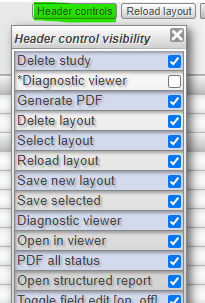
The header section has the button you need to open the study images in a viewer, open the report in PDF, delete the entire study, and change and create a layout.

To select the buttons you want to surface, you can:
- Step 1: Click the header controls button.
This opens the list of buttons you can add or remove
- Step 2: Click the tick box
Check or uncheck the box corresponding to the feature you want to surface
- Step 3: Save the layout
Report page body
You can customize and select the fields to surface on the report page.
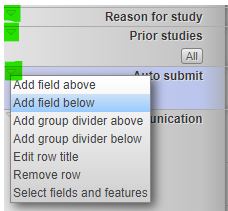
- Click the arrow icon on the left side to choose a feature. Ex. Add field below to open field and feature selection panel.
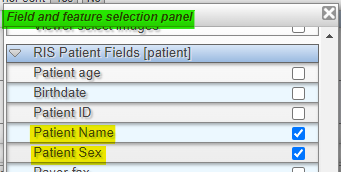
Then choose a field to be added in your report worklist. Ex. Patient Name and Patient Sex.
This opens the list of fields you can add to your layout.
- After adding the fields, you can re-arrange it by dragging it around.
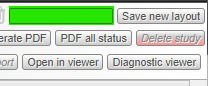
- Save the report page layout. Fill the box with your report page layout name then click Save the new layout. Ex. Default or My Report page.
OR
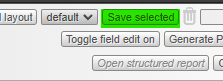
You may immediately click "Save selected" if you had an existing layout.
If this feature is not in your scope, please contact your PACS Administrator to add this to your account.
If you're still having problems, send a ticket to:
https://support.lifetrackmed.com/support/tickets/new
Include in the ticket the:
- URL you use to view the worklist: ie: xx.lifetrackmed.com
- User ID
- Facility Name (Institution or Site)