
TABLE OF CONTENTS
About
LifeSys sending alerts via email is a powerful feature. This is very flexible because it makes use of the worklist. This means that you can set up the worklist with all the conditions and parameters that you want in your alert and just turn on the alerting.
Use case:
- You want to receive an email every time a new study is assigned to you for reading. Depending on the workflow, this may be: study should be in Submitted and that the Case assign field is your initial.
With this, you can create a worklist that displays all the information you want to be in the emai: the patient name, patient ID, study description, and other relevant info.
Then filter the worklist to display only studies where Status is Submitted; and Case assignment initial is you.
Then save that worklist and then follow steps below to activate it. - Another useful use case is if you want to receive an email alert whenever there is a stat or emergency case. For this one, you just need to have a worklist that displays/filters on Emergency status.
Steps in activating the Alerting
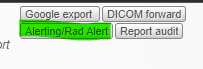
Step 1. Click the Alerting button in your worklist.
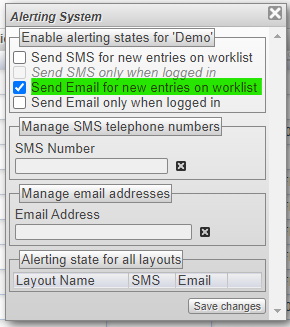
Step 2. Tick the Send Email for new entries.
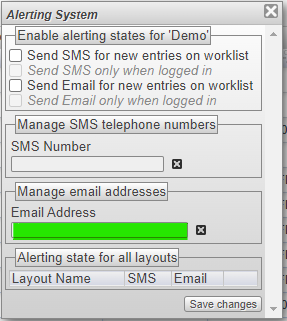
Step 3. Type in your Email Address in the box.
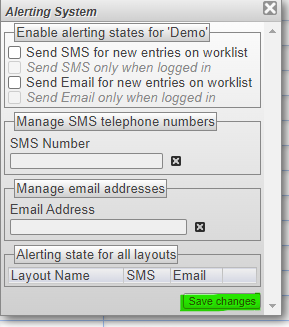
Step 4. Click Save Changes.
Video
https://www.youtube.com/watch?v=wnZJZH4WndE
If this feature is not in your scope, please contact your PACS Administrator to add this in your account.
If you're still having problems, send a ticket to:
https://support.lifetrackmed.com/support/tickets/new
Include in the ticket the:
- URL you use to view the worklist: ie: xx.lifetrackmed.com
- User ID
- Facility Name (Institution or Site)