
TABLE OF CONTENTS
- LifeSys Filters
- Steps
- Filter options
- AND and OR logical operators
- Filtering Dates
- Here are some tutorial videos related to filtering worklists
LifeSys Filters
The LifeSys filters are a powerful feature that allows you to configure your layout and display the studies that you only want in your view.
This filter also can be used to search for a particular study. Unlike using a search bar, this filtering capability allows you to locate a study based on the available information.
Use case:
- You only have the accession number or the patient ID. You can click the filter icon for that field to open the filter panel. Type in the known information.
Steps
To use this feature, here are the steps:
- Step 1: Select which column to filter, for this example let's say we'll only show CR/DX studies on the worklist.
- Step 2: Click the filter button which is under the column title.
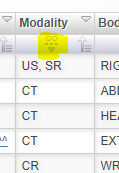
- Step 3: On the Filter string field, type in "CR or DX" and make sure to select either "Equals" or "Contains"
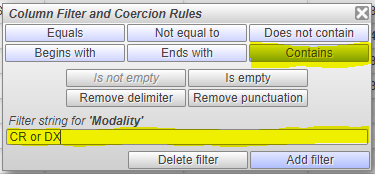
- Step 4: Click the Add filter button once step 3 is done.
- Step 5: The worklist should refresh itself only showing CR/DX studies.
Filter options
What do these buttons mean?
Equals - returns studies with the exact characters/words specified on the filter string corresponding to the filtered column.
Not equal to - returns studies that are not equal to the characters/words specified on the filter string.
Does not contain - returns studies that do not contain the specified characters/words on the filter string.
Begins with - returns studies that begin with the characters/words specified on the filter string corresponding to the filtered column.
Ends with - returns studies that end with the characters/words specified on the filter string corresponding to the filtered column.
Contains - returns studies that contain the specified characters/words on the filter string.
Is not empty - tells the system to return studies with which the filtered column is not empty
Is empty - tells the system to only return studies with which the filtered column is empty
Remove delimiter - removes the delimiter(^) character which is the replacement for any extra spaces on the patient name
Remove punctuation - removes the punctuation characters on the patient name
AND and OR logical operators
AND - use this logical operator if you want the filter string to contain both of the specified characters/words in the filter string.
Example: you want to find a patient with the name John Doe:
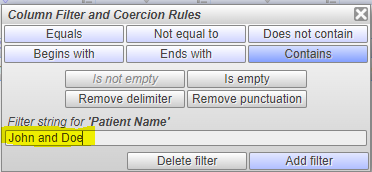
This filter string will only return studies with the patient name "JOHN DOE"
OR - use this logical operator if you want the filter string to contain any of the specified characters/words in the filter string.
Example: you want to find any patient with either John or Jane on their name:
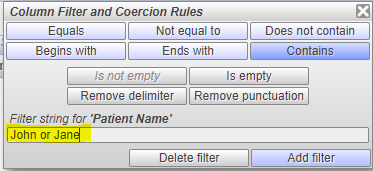
This filter string will return all studies with "JOHN" or "JANE" on their first or last name
Note: The filter string is not case sensitive so it doesn't matter if you type in lower case or all caps.
Filtering Dates
You can filter date/time columns the same way or use the added Start-End date/time buttons.
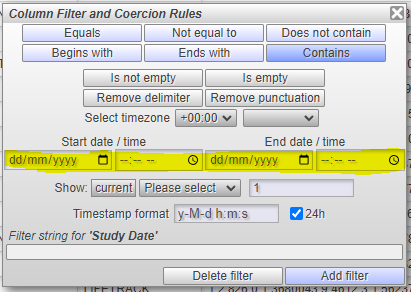
You can leave the time field blank if you just want to filter the date range. The worklist will fetch all studies that are in the specified date range for the corresponding date/time column. Also, you can use the filter string to filter specific date/time as well. Make sure to follow the 'yyyy-mm-dd' format when using this field.
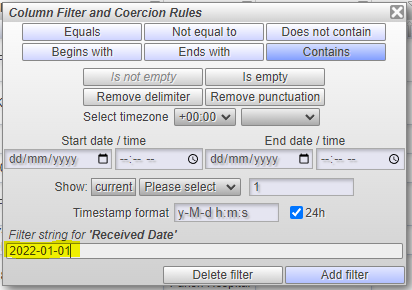
The timezone dropdown list will allow you to change the timezone of the column to your specified timezone. Note that the default timezone for all date/time columns except for the study date which uses the machine's timestamp.
Here are some tutorial videos related to filtering worklists
If you're still having problems, send a ticket to:
https://support.lifetrackmed.com/support/tickets/new
Include in the ticket the:
- URL you use to view the worklist: ie: xx.lifetrackmed.com
- User ID
- Facility Name (Institution or Site)