
TABLE OF CONTENTS
LifeSys allows you to export your worklist as a spreadsheet and save it in a Google spreadsheet.
Use case:
- This is mostly used by the Billing department to get the number of studies sent and to bill
- This is also being used by Managers to get the case-mix and census
- Radiologists also use this to get the number of studies they read
- The exported list is also a requirement for some regulatory purposes
Instruction
Step 1. Set up the worklist and display the list of studies you want to export. You may do this by using the Filter and Sort capability of LifeSys.
For instance, if you want to export the list of studies for a certain month, then you can filter on the Received date.
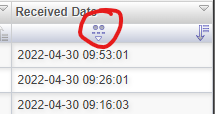
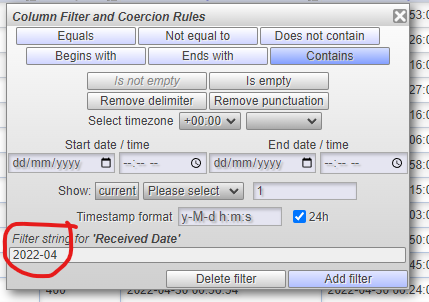
Note: you can also filter other fields other than the date or you can do multiple filters. For instance, you want to get the list of CT studies for a certain month. Then you filter on the modality to contain CT and the received or study date.
The received date is the date the study is received on the server.
Whereas, the study date is the date from the DICOM header which is the date the study is done.
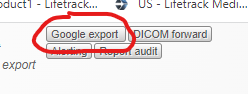
Step 2. Click the "Google Export" button.
After setting up the worklist, you can either save the worklist before clicking the Google export button, or you can directly press the button.
LifeSys offers unlimited worklist layout creation and thus, you can create and save as many worklists as your practice needs.
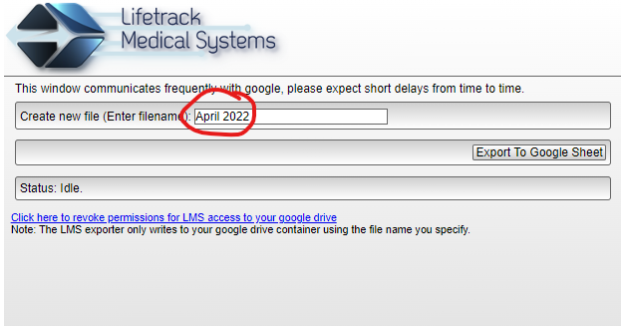
Step 3. Type in a file name. ex: April 2022. Then click "Export to Google Sheet".
A floating window will open. The filename you entered here is the same name that appears in your Google drive.
Note: The exported spreadsheet is saved in your Google drive and thus, a Google account is a requirement to use this feature.
Step 5. Open google drive. (drive.google.com/drive/my-drive)
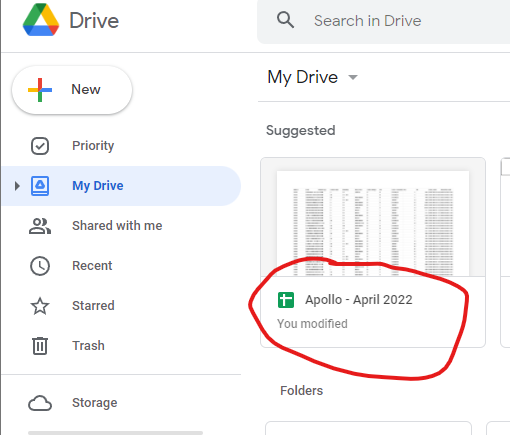
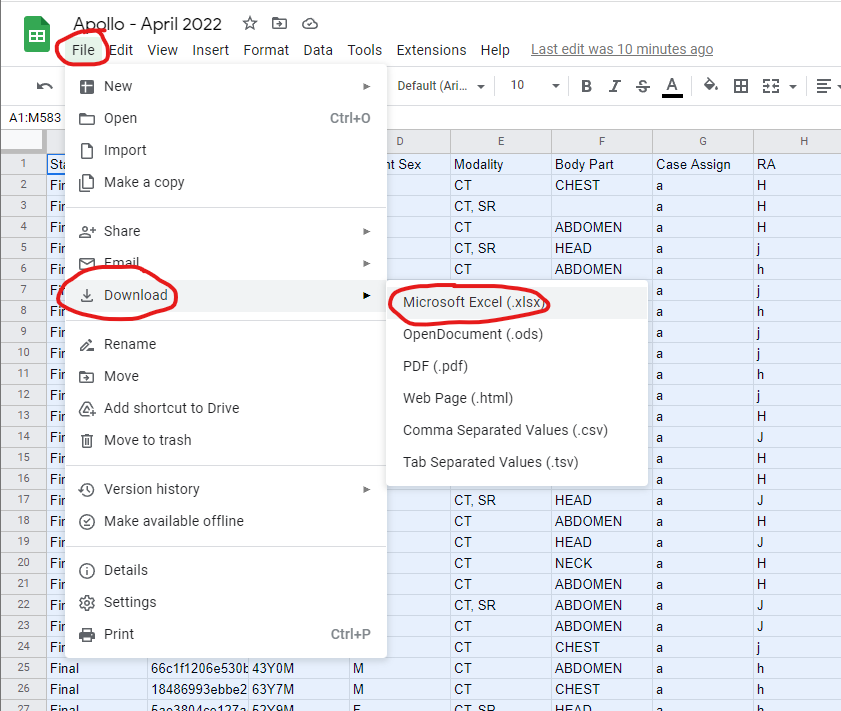
Step 6. Open the file. Click "File"- "Download" - "Microsoft Excel"
This is an optional step if you want to open the spreadsheet in Microsoft Excel. You can likewise download the exported sheet as a PDF or .csv file
Video
https://www.youtube.com/watch?v=LuWPzj1EOXQ
Limitation
- The export in the spreadsheet makes use of Google applications and thus a Google account is a requirement. Google offers a free account, so you can sign up if you want to use this feature
- You are only allowed to export up to 15,000 rows per export. If you need to export more than that, you may need to do several exports.
- For servers on-premise without internet connection - the Google export is not an option.
If the Google Export is not available in your layout, please contact your PACS Administrator to add it in your user scope.
If you're still having problems, send a ticket to:
https://support.lifetrackmed.com/support/tickets/new
Include in the ticket the:
- URL you use to view the worklist: ie: xx.lifetrackmed.com
- User ID
- Facility Name (Institution or Site)