
TABLE OF CONTENTS
Things to check
- Check if all cables (including the power cable) are properly plugged
- Verify if cat5/cat6 cable from the device to the wall receptacle is securely connected at both ends
- Verify the cat5/cat6 cable itself. Get a good cable for testing
- Verify if the sending device has internet connectivity
- Verify machine settings. Check if the device is still using the provided DICOM destination (if you are not sure what is the DICOM destination, contact your local IT who sets up the device)
- AE Title:
- IP address:
- Port:
- Check if the internet is reachable from other workstations on the LAN at the site
- Ping the device that is trying to send the study
- Attempt to successfully ping and/or query a different device
- Attempt to successfully open an Internet page using the same network as the sending device
- Check the bandwidth of the UPLOAD (needs to be at least 100 kB/s).
- Note: in sending studies, the UPLOAD speed is more important than the download speed
- Note: in sending studies, the UPLOAD speed is more important than the download speed
- Check if the firewall has been changed
- Attempt to successfully send a study from another device
- Attempt to successfully send a study from another site
- Restart the device
If using a URL/dropspot
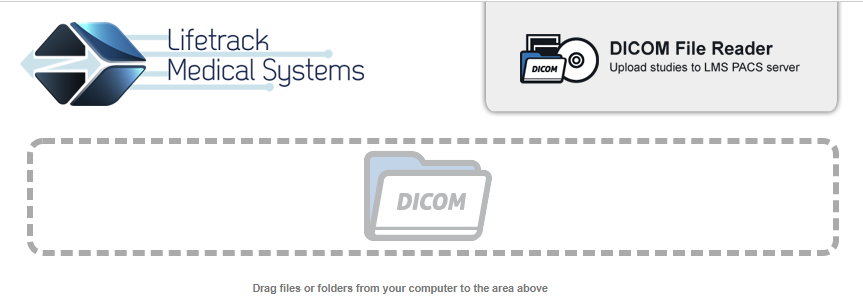
One way of sending studies to Lifetrack is via s URL drop spot.
If you are using a link to send to Lifetrack and studies are not showing up in the worklist, you may check the following:
- Check if you have an internet connection and check the upload speed.
- The drop spot only accepts DICOM instances. Make sure that you are dropping on to the designated spot DICOM files only. You will know if the file format is OK if a table with the study information appears below the drop spot.
- If after sending, you cant see the images in the worklist, or if the images are incomplete, you can:
- Check if the firewall is blocking the sending of the file
- Check for internet stability
The use of this tool is not advisable if you are going to send big images such as echoes or studies with more than 1000 DICOM instances. For these types of studies, please use a gateway or send directly from the modality.
If you're still having problems, send a ticket to:
https://support.lifetrackmed.com/support/tickets/new
Include in the ticket the:
- URL you use to send the studies
- URL you use to view the worklist
- Study ID, patient ID, or Accession number of the study you're trying to send
If using cDMC/ Gateway
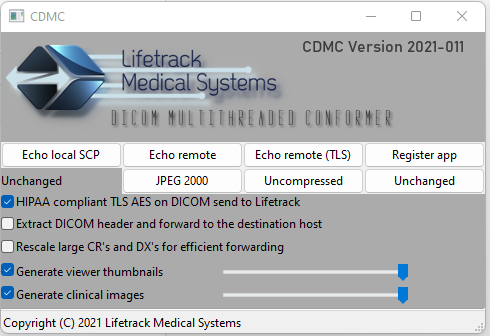
If you are using a gateway and studies aren't forwarding to LifeSys, here are the things that you may check:
- Check if the gateway is running. Sometimes, even with a script to automatically run the gateway in a Windows computer, the script doesn't work and thus, you can check if the gateway is open or not.
- If it is running but images still won't come in and appear on the worklist, you can try to restart the gateway.
- You can also press the Echo remote and the Echo remote TLS button on the gateway. Take note of the error if there are:
- Failed Echo remote - Please check if your network is blocking port 104
- Failed Echo remote (TLS) - Please check if your network is blocking port 105
- Note: if you can do a successful Echo remote but failed Echo remote (TLS) - you can still send studies in Lifetrack and will appear on the worklist if you uncheck the HIPAA compliant TLS AES on DICOM send to Lifetrack
- Check for firewall or anti-virus that's blocking the sending. You can temporarily turn off the anti-virus and then try sending. If studies appear on the worklist, you may work with your IT provider to whitelist the application.
- Check as well the IP address. The IP address of the computer where the gateway is installed is supposed to be static, Please check if the IP set in the sending modality is the same as the IP of the computer where the gateway is.
If you're still having problems, send a ticket to:
https://support.lifetrackmed.com/support/tickets/new
Include in the ticket the:
- Study ID, patient ID, or Accession number of the study you're trying to send
- Screenshot of the gateway
- URL you use to view the worklist
- Your institution and site
If sending directly from the modality
If you are directly sending studies from the modality or another PACS to Lifetrack, and you do not see the studies on the worklist, you can:
- Check the sending modality if there are errors
- Check if there is an internet connection (if you are sending to a remote LifeSys server)
- Ping the LifeSys server from the modality. If you cannot ping the server, check your local network
- Check the network cable if they are properly attached and plugged in
- Check the DICOM destination on the sending modality and make sure you are sending to the correct destination
- Check if other modalities can send to LifeSys. This is to try to isolate if the issue only involved a particular modality or all modalities. If this is isolated to a specific modality only, you can check with the vendor or the IT for the network
- You may also try to restart the sending modality
If you're still having problems, send a ticket to:
https://support.lifetrackmed.com/support/tickets/new
Include in the ticket the:
- DICOM destination you are sending to
- URL you use to view the worklist: ie: xx.lifetrackmed.com
- Steps you already did as an initial troubleshooting