
How-To Guides
Video tutorial: https://youtu.be/OMZKVAGxEhI
How to Use Timezone Adjustment Correctly
Scenario: You need to view records in a different timezone
Steps:
Click Select Timezone
Choose the desired timezone offset
Apply the timezone setting
Then apply your datetime filters
⚠️ Important: Always set the timezone before applying other filters to avoid missing records.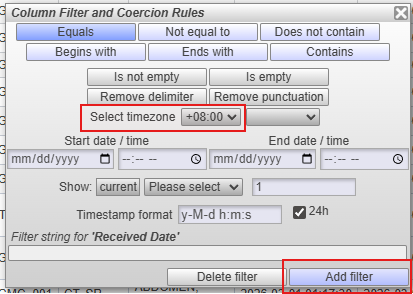
How to Filter a Month's worth of records
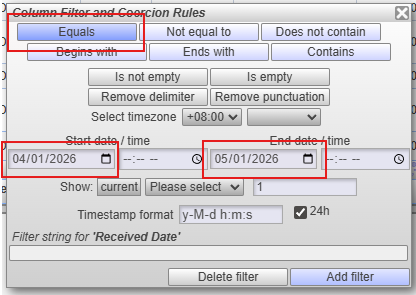
Scenario: Show records for the whole month of April 2026
Steps:
Select the datetime column
Choose Equals
Enter:
Start Date: 2026-04-01
End Date: 2026-05-01
For filtering the whole month, there is no need to indicate the start and end time.
Make sure to use the date/time picker by clicking on the calendar icon on the start and end date fields.
Apply filter
⚠️ Note: The logic behind setting the end date to May 1st is because of how the system interprets the filter. With this filter, it will fetch all the data up until April 30, 2026, 11:59:59 PM since it will stop fetching when the date turns May 1. So meaning, if we set the End Date to the actual end of the month date, it will only fetch the data up to April 29, 2026, 11:59:59 PM since the query will stop once the date becomes April 30.
How to Filter Records for a Specific Exact Datetime
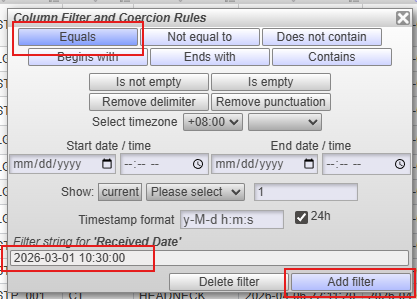
Scenario: Find records exactly at March 1, 2026, 10:30 AM received date
Steps:
Select the datetime column
Choose Equals
Enter:
2026-03-01 10:30:00Apply filter
How to Filter Records Starting From a Specific Date
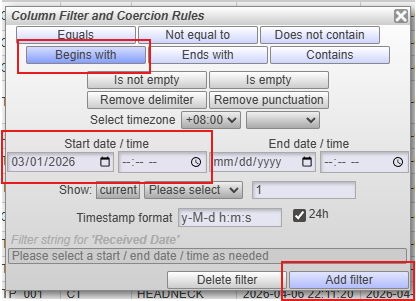
Scenario: Show all records with received date from March 1, 2026 onward
Steps:
Select the datetime column
Choose Begins with
Set:
Start Date: 2026-03-01
(Optional) Start Time: 00:00:00
(Optional) End Date: 00:00:00
(Optional) End Time: 00:00:00
Apply filter
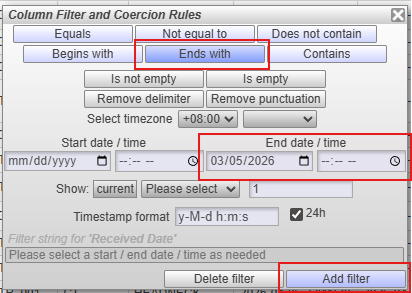
How to Filter Records Up to a Specific Date
Scenario: Show all records with received date up to March 5, 2026
Steps:
Select the datetime column
Choose Ends with
Set:
End Date: 2026-03-05
(Optional) End Time: 23:59:59
(Optional) Start Time: 23:59:59
(Optional) Start Time: 23:59:59
Apply filter
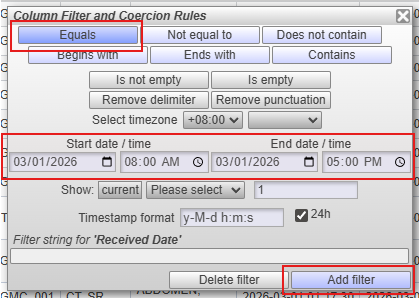
How to Filter Between Two Datetimes (Time Window)
Scenario: Show records between March 1, 2026 (8:00 AM) and March 1, 2026 (5:00 PM)
Steps:
Select the datetime column
Choose Equals
Enter:
Start: 2026-03-01 08:00:00
End: 2026-03-01 17:00:00
Apply filter
Common Mistakes to Avoid
Using partial datetime values with Equals
Selecting Contains or Does not contain for datetime fields
Applying timezone adjustment after filtering
Mixing incorrect date types (e.g., end date with “Begins with”)
Summary
These updates enforce stricter and more structured datetime filtering while improving system performance. Following the updated filtering rules and examples above will ensure accurate and efficient results.
Note of the following UI Behavior Changes:
1. Unsupported Filters for Datetime Columns
The following options are disabled for datetime fields:
Contains
Does not contain
If selected, an informational alert will appear.
2. Exact Match Filtering
Equals and Not equal to require a full datetime format:
YYYY-MM-DD HH:MM:SS
3. Begins With (Start Date Filtering)
Requires:
Start date (mandatory)
Start time (optional)
Disables manual text input
Filters records from a specific starting point onward
4. Ends With (End Date Filtering)
Requires:
End date (mandatory)
End time (optional)
Disables manual text input
Filters records up to a specific point in time
5. Input Validation
Selecting mismatched inputs (e.g., end date with “Begins with”) will trigger an error.
Ensures only valid filtering combinations are allowed.
6. Time-Window Filtering
To filter between two datetime values:
Select Equals
Provide both start and end datetime
Supports Lifetrack version 2.2026.1.35? and latest