
RadTech basic use of LifeSys are as follows:
TABLE OF CONTENTS
- 1. Login
- 2. Review Images
- 3. Enter relevant clinical information and patient details
- 4. Assign and submit cases for reading
- 5. View and print results
- 6. Setting comparison
1. Login
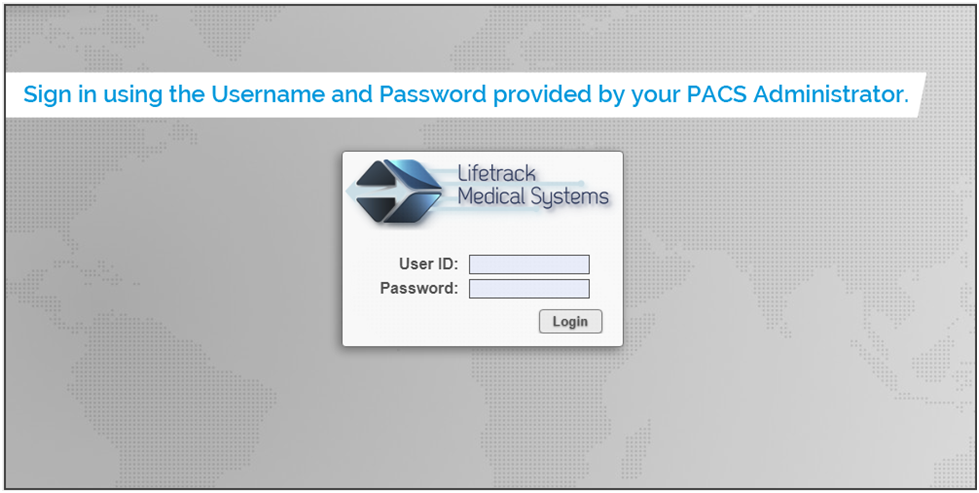
Using GOOGLE CHROME BROWSER, type in the URL for LifeSys.
Once you have accessed the Login page, enter the UserID and Password
2. Review Images
Upon login, you will be directed to the LifeSys worklist.
You have your Default worklist sorted in Date received.
Open the report page by clicking on the Status name.
To open the image, press the Diagnostic Viewer button found at the top right-most part of the page to open the images.
3. Enter relevant clinical information and patient details
While still on the report page, look for the Reasons for study line and enter relevant clinical information.

4. Assign and submit cases for reading
In the Case Assign line, type in the Radiologist’s code.
Press the Submitted button

How to set a study to comparison?

Open the report page.
Look for the Set report status field
Change status to Comparison

5. View and print results
If the status is already in FINAL status, it means that the Radiologist already signs off on the study,
Click the patient name and then Click the Generate PDF button in the upper right section of the page

To get you started, please check this link:
https://support.lifetrackmed.com/a/solutions/articles/33000273758